Article Overview
Pronunciation Library helps streamline your workflow by managing all your Replacements all in one place. You can store multiple Replacements for the same word or phrase and toggle them on or off as needed.
Adding a Replacement
From the Studio:
The quickest way to add a Replacement is right from your script in Studio.
Highlight the word you want to change. Our smart toolbar will appear.
If you’ve added Replacements before, you’ll see them in a dropdown, along with any Respelling suggestions available.
Click on your preferred Respelling to apply it.
Add a new Replacement to your list.
Click + New replacement in the smart toolbar.
The Replacements panel will open on the right. The word you selected will already be in the Original text box.
Enter your new Respelling in the Replacement field.
Click Save to Library.
Your new Replacement is now saved in your Pronunciation Library! It will be applied every time the word appears in your script.
From the Pronunciation Library:
- In your WellSaid account, navigate to Libraries from the left menu.
- In the top right, select New Replacement.
- In the top field, enter the original text you want to replace. In this example, we are using the word ‘edamame.'
- In the bottom field, enter your replacement text or Respelling that creates the exact sound you’re looking for, or click See Suggestions to apply a Respelling suggestion.
Example: let's use a Respelling to achieve an accurate, consistent sound. (ehd-ah-MAH-may). - Click the Play button to hear it.
- Once you have the accurate pronunciation, click Save.
- Woohoo! Your new Replacement now lives in your Pronunciation Library.

Editing or Deleting Replacements
You can easily manage existing Replacements in your Pronunciation Library.
- In your WellSaid account, navigate to Libraries from the left menu.
Find the entry you'd like to update and select the Replacement you want to adjust.
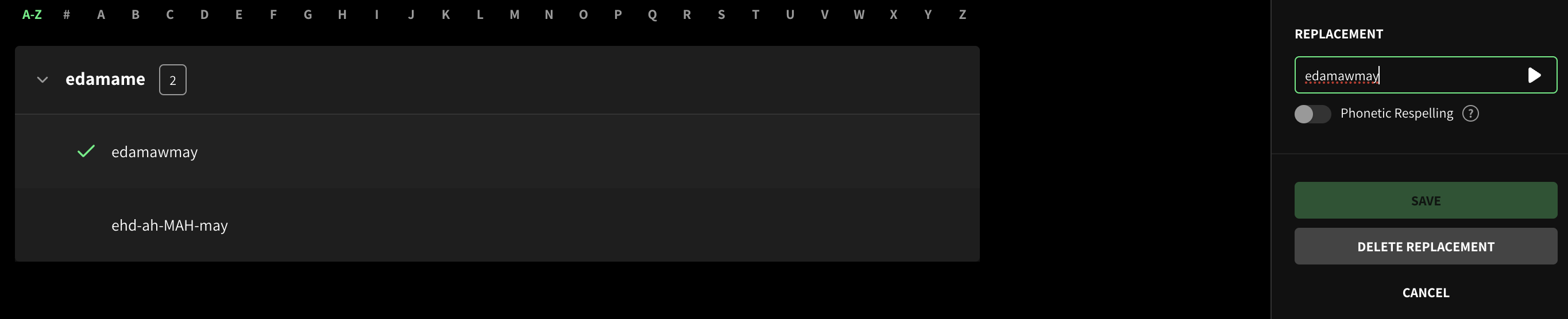
Edit or delete Replacements from the right-hand panel.
Tip: You can delete a Replacement directly from the smart toolbar. Highlight the word in Studio, open the dropdown from the toolbar, and click the delete icon next to the Replacement you want to remove.