Article overview
Respellings let you fix pronunciation by writing out how a word should sound. Create, format, and troubleshoot respellings in WellSaid Studio.
Sometimes a voice mispronounces a word—especially a name, brand term, or piece of technical vocabulary. Respellings give you a direct way to fix that by writing out exactly how a word should sound.
What are respellings?
A respelling is a phonetic representation of a word that guides how the voice pronounces it.
Respellings are commonly used for:
- Proper names
- Brand terms
- Technical vocabulary
- Acronyms
- Words the voice mispronounces
Respellings let you adjust pronunciation while keeping the written text intact.

How respellings work
A respelling describes:
- How the word should be broken into syllables
- Which syllable(s) should be emphasized
Before creating a custom respelling: Check for pronunciation suggestions first. They often resolve pronunciation issues quickly.
Suggestions appear in the Smart Toolbar and in the Replacements panel in the right sidebar, and include:
- Oxford Suggestions — A phonetic dictionary powered by Oxford Languages
- Smart Suggestions — AI-generated pronunciation recommendations available on Business and Enterprise plans
If you need to replace text that isn't phonetic—such as numbers, abbreviations, IDs, or phrases—use Replacements instead.
Using pronunciation suggestions
Before creating a custom respelling, check the Smart Toolbar for pronunciation suggestions. WellSaid provides two types:
Oxford Suggestions
Oxford Suggestions are based on pronunciation data from the Oxford dictionary. They cover over 251,000 words in British and American English—including industry-specific, uncommon, and complex terms—and often resolve ~90% of pronunciation issues quickly.
Smart Suggestions
Smart Suggestions are AI-generated pronunciation recommendations that help with words not commonly found in the dictionary:
- Uncommon names
- Brand terms
- Specialized vocabulary
- Words not covered by dictionary suggestions
Smart Suggestions are available on Business and Enterprise plans.
Recommended workflow
When a word is mispronounced, follow these steps:
- Highlight or double-click the word in the script.
- Check the Smart Toolbar for Oxford or Smart pronunciation suggestions.
- If no suggestions work, create a custom respelling. See Creating a respelling below.
Tip: Save respellings to your library so they can be reused across projects and keep pronunciation consistent.
Creating a respelling
To create a respelling using the Replacements panel:
- Highlight or double-click the word in the editor.
- In the Smart Toolbar, click + New replacement.
- The Replacements panel opens in the right sidebar with the original word already filled in.
- Enter the phonetic spelling in the Replacement field.
- Turn on Phonetic Respelling.
- Save the entry to your Pronunciation Library.
Saving respellings allows them to be reused across projects and ensures consistent pronunciation.
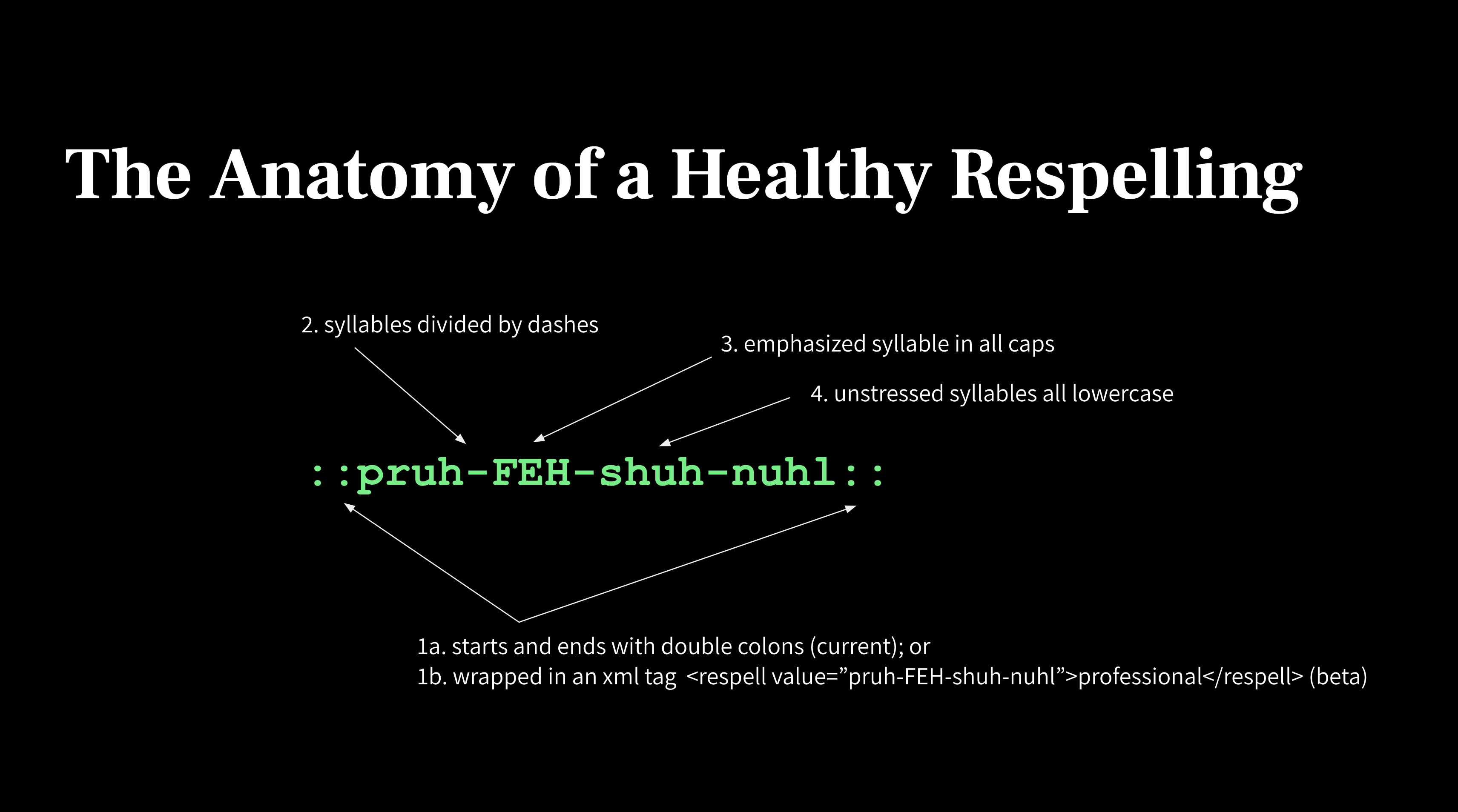
Respelling rules
When creating a respelling, you define:
- Syllable breaks — how the word should be divided
- Stress — which syllable should be emphasized
Syllable breaks: Use hyphens (-) to separate syllables.
Example:
mis-sis-SIP-ee
Stress: Use capital letters to indicate the emphasized syllable.
Example:
sask-ACH-oo-when
Most English words have at least one stressed syllable. Acronyms or brand names may have multiple.
Respelling Reference Charts
If you're unsure how to represent a sound, use the Respelling Reference Charts. They provide examples of common phonetic sounds and syllable patterns, and are especially helpful for:
- Unfamiliar names
- Specialized terminology
- Uncommon vowel or consonant sounds
See the Respellings Reference Charts for a full list of phonetic pronunciations.
Advanced: Inline respelling syntax (Standard model only)
The Standard model also supports inline respellings written directly in the editor.
Example:
::sask-ACH-oo-when::
Inline respellings are useful for quick testing, but they are not saved to your Pronunciation Library.
For most workflows, use the Replacements panel in the right sidebar so pronunciations can be reused and managed centrally.
Respellings vs. Replacements
Respellings and Replacements both affect how text is spoken, but they solve different problems.
Respellings
Respellings control how a word is pronounced using phonetic spelling. Use them when a word is spelled correctly but pronounced incorrectly.
Example:
Saskatchewan → sask-ACH-oo-when
Replacements
Replacements substitute one piece of text with another when the voice reads it. Use them when the written text does not match what should be spoken.
Example:
Original text: 1099-MISC Spoken output: ten ninety-nine misc
Replacements are commonly used for:
- Numbers
- IDs or codes
- Abbreviations
- Phrases
- Words that should always be spoken a certain way
How they work together
Respellings are created within the Replacements system. A Replacement rule can either substitute text with different spoken words, or apply a phonetic respelling that controls pronunciation.
Turning on Phonetic Respelling converts the replacement rule into a pronunciation rule instead of a text substitution.
Use a Respelling when:
- A word is pronounced incorrectly
- You want phonetic control over pronunciation
- The word is a name, brand, or uncommon term
Use a Replacement when:
- The written text should be spoken differently
- You are working with numbers, codes, abbreviations, or phrases
- You want a pronunciation rule to apply consistently
For more information, see the Guide to Replacements.
Troubleshooting respelling errors
If a respelling doesn't work or a clip fails to render, the issue is usually related to formatting or how the respelling was created.
To troubleshoot using the Replacements panel:
- Highlight or double-click the word in the editor.
- Click + New replacement in the Smart Toolbar.
- Enter the phonetic spelling.
- Turn on the Phonetic Respelling toggle.
- Preview the pronunciation.
- Save the entry to your Pronunciation Library.
If you're typing respellings directly in the script using inline syntax, remember this is only supported by the Standard model and requires specific formatting.
If you're unsure how to represent a sound, refer to the Respellings Reference Charts.
| Error | Cause | Fix | Example |
| "Please format your respelling correctly" | The respelling syntax is invalid. |
Ensure the respelling:
|
✅ ihg-ZAM-puhl ⛔ ihg ZAM puhl ⛔ ihg-Zam-puhl |
| "Respelling must wrap some text." | Punctuation or numbers placed directly next to a respelling can interfere with parsing. |
Add a space between the respelling and any punctuation or numbers. If the respelling was saved to your library, ensure there's a space between the respelling and surrounding characters in the editor. |
✅ ihg-ZAM-puhl dot com ⛔ ihg-ZAM-puhl.com ✅ 1 OH ⛔ 1OH |
| Acronym punctuation edge case | Certain punctuation combinations can affect pronunciation. | Try adding a space between the acronym and punctuation. | ✅ Y-SEE-DEE - 10 ✅ ICD - 10 ⛔ (Y-SEE-DEE)-10 |
| Respelling cannot contain Q or X. | The respelling system uses specific phonetic sound mappings. Those sounds are represented with other characters. | Review the Respelling Reference Charts to find the equivalent letter. | ✅ ihg-ZAM-puhl ⛔ EX-am-puhl |
Still getting an error?
If you previously added respellings to your Pronunciation Library that contain diacritics or special characters, pronunciation may fail. Try:
- Removing the special characters
- Updating the respelling in the Pronunciation Library page
FAQs
Q: What's the difference between a respelling and a replacement?
A: A respelling controls how a word is pronounced using phonetic spelling. A replacement swaps the written text with different spoken words. Both are created through the Replacements panel—enabling the Phonetic Respelling toggle converts a replacement into a pronunciation rule.
Q: Do I need to use double colons (:: ::) for every respelling?
A: Only if you're typing directly in the editor using the Standard model. When you create a respelling through the Replacements panel in the right sidebar, you don't need to use double colon formatting—the Phonetic Respelling toggle handles it.
Q: Can I reuse a respelling across multiple projects?
A: Yes. Save the respelling to your Pronunciation Library and it will apply consistently wherever that word appears across your projects.
Q: Why can't I use the letters Q or X in a respelling?
A: The respelling system uses phonetic sound mappings, and those sounds are represented by other characters. Refer to the Respellings Reference Charts to find the correct equivalent.
Q: What should I do if a pronunciation suggestion doesn't fix the issue?
A: If neither Oxford nor Smart Suggestions resolve the mispronunciation, create a custom respelling using the Replacements panel. Use the Respellings Reference Charts to help construct the phonetic spelling.